

crex(cmux-resurrect)
Save, restore, and template your terminal workspaces — for cmux and Ghostty.
The Problem
You spent an hour setting up the perfect terminal layout — tabs, panes, directories, running processes. Then your Mac reboots. Gone. Neither cmux nor Ghostty can bring back what they never saved.
The Solution
crex save. crex restore. That's it. Two commands, entire workspace back. 16 templates, Markdown Blueprints, auto-save daemon. Stop rebuilding.

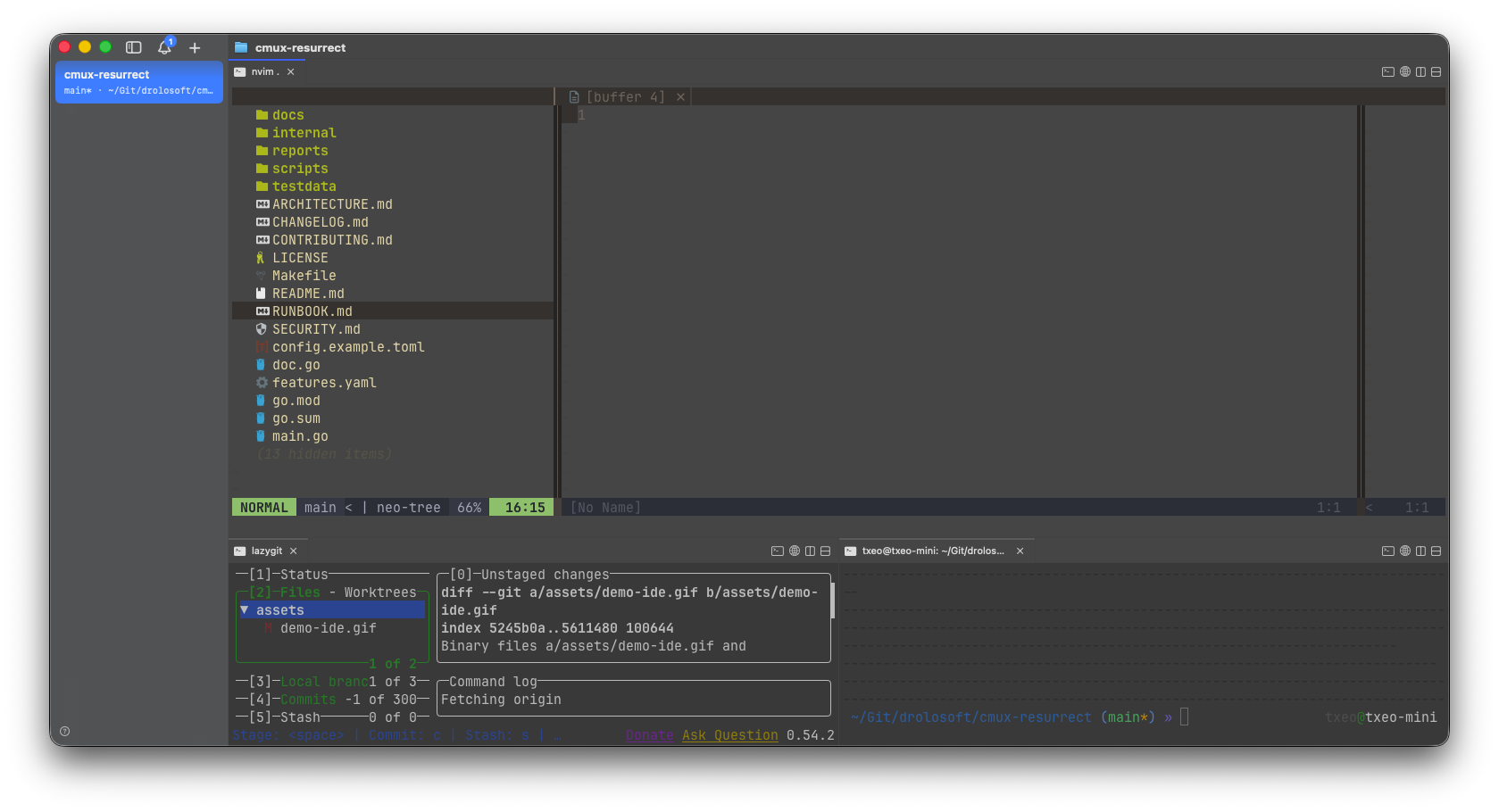
One command, full IDE
Creates a workspace with nvim (70% top, with neo-tree), lazygit (bottom-left), and a terminal (bottom-right) — ready to code in seconds. 16 templates ship built-in.
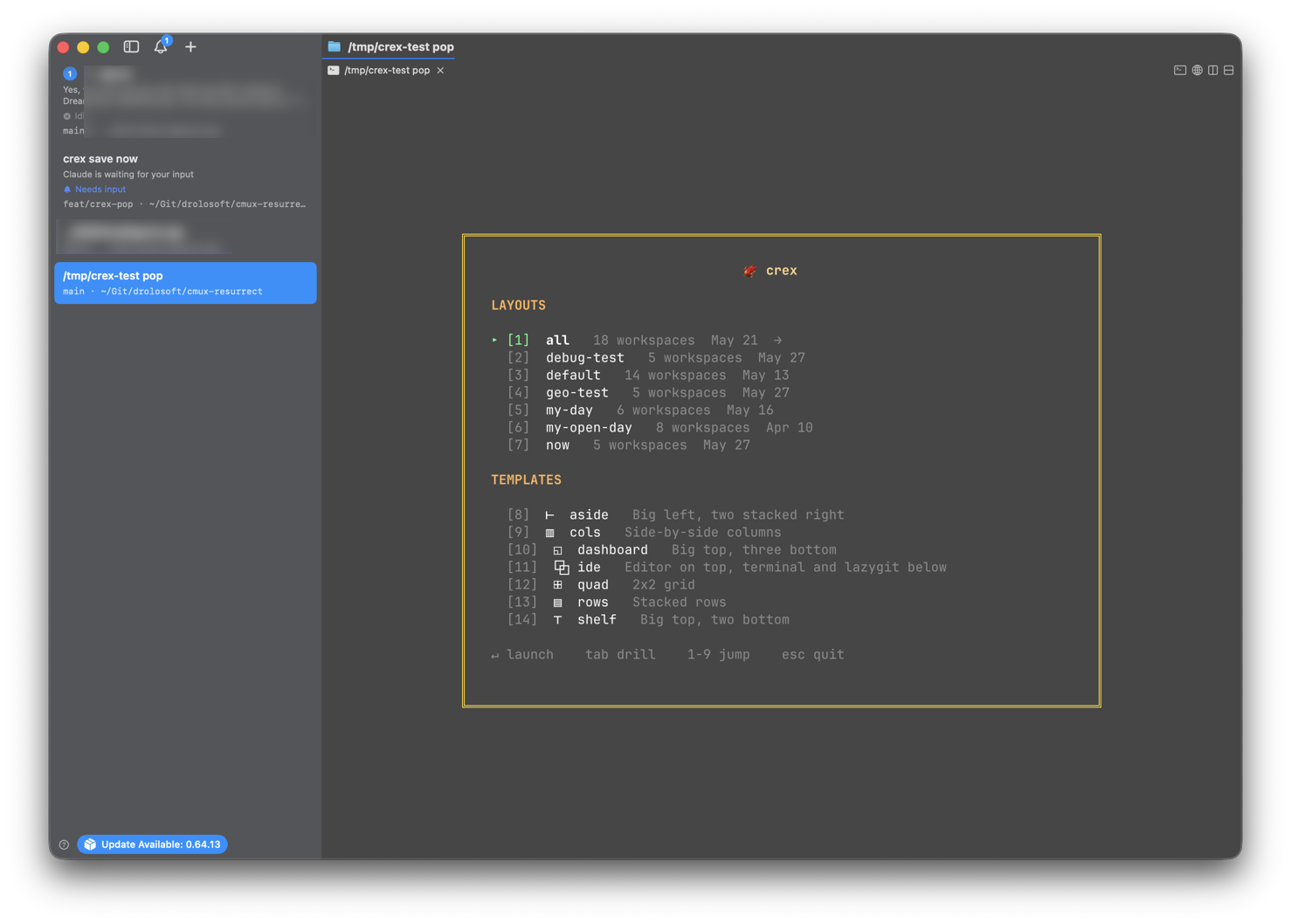
Instant workspace switcher
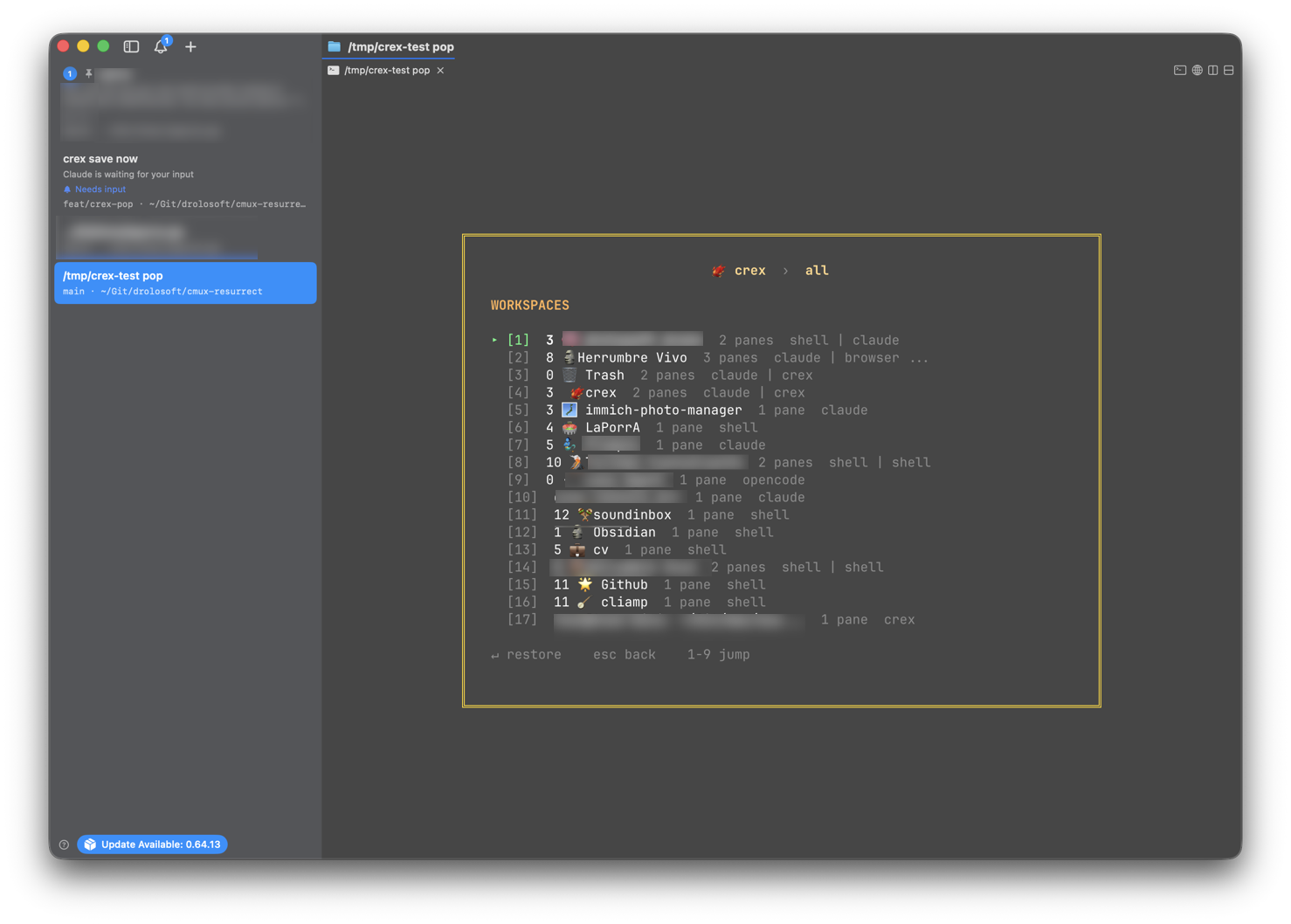
A floating picker with fuzzy search, Tab to drill into layout workspaces, and number keys for instant selection. Hit Ctrl+G from any shell to launch it.
Install with Homebrew (recommended)
That's it — both crex and cmux-resurrect are ready to use. No Go toolchain required.
Alternative: install with Go (requires toolchain)
First time? Run crex setup
Try it


Run crex tui — or just crex when config exists — to drop into the interactive shell. A crex❯ prompt gives you full access to all commands without leaving your terminal.
3-Level Tab Completion
Press Tab to discover commands with icons and descriptions. Navigate with Tab/Shift-Tab/Arrows, go back with Escape. Works at all 3 levels: commands → subcommands → arguments. Layout names, templates, and Blueprint entries auto-complete.
Details that matter
Listings show numbered items — use the number in any follow-up command. Arrow keys browse listings inline. The shell adapts to your terminal's dark or light theme automatically.
- Phoenix farewell messages on exit
- Confirmation dialogs for destructive operations
- Smart prompt retention: errors keep your command so you can fix args without retyping
settingsgroup to configure banner, restore-mode, and preferences from the shell
Full Layout Capture
Tabs, panes, CWDs, pinned state, and active tab — all captured to a single TOML file.
crex save my-day -d "Friday deep work"
Two-Level Restore Picker
Browse layouts with arrows, drill into the exact workspace with →/Tab. Jump directly to any item with digit keys 1-9. Restore a single workspace without touching the rest.
crex restore
Smart Sync Restore
Restore detects your current tab state and only asks when it matters. From a fresh terminal, it restores with zero prompts. With matching tabs, it offers to keep them or recreate from the layout. No unnecessary questions.
crex restore my-day
Blueprint Management
Your ideal terminal setup, declared in Obsidian-compatible Markdown.
crex bp add webapp ~/projects/webapp --template dev
Template Gallery
16 built-in templates — from simple splits to full IDE setups. Preview and customize.
crex template use claude ~/projects/my-app
Watch Daemon
Background auto-save with content-hash deduplication. Zero maintenance.
crex watch --daemon
3-Level Tab Completion
Press Tab in the interactive shell to discover commands, subcommands, and arguments. Icons and descriptions on every option. Completions cached with 2s TTL.
crex❯ bp [Tab] → add · list · remove · show
Shell Completion
Dynamic tab completion for your shell (bash, zsh, fish). Zero-config with Homebrew.
crex restore <TAB> → my-day production autosave
Dry-Run Preview
Inspect every command before it runs — cmux CLI or Ghostty AppleScript.
crex restore my-day --dry-run
Setup Wizard
Guided configuration. Detects your backend, creates config, and gets you started in seconds.
crex setup
Adaptive Theme
Auto-detects dark or light background. Three banner styles: flame, classic, plain.
CREX_BANNER=flame crex
Layout Descriptions
Annotate each layout — useful context for teams sharing sessions.
crex save api -d "backend API — reads postgres"
Browser Panes
Save and restore browser panes with their URLs. On cmux, they're created as native browser panels; on Ghostty, the URL opens in the system browser.
crex show my-day → 🌐 https://localhost:3000
Foreground Command Detection
Auto-detects the foreground process in each pane — npm run dev, nvim, htop, make watch, and more. Commands are saved and restored without manual configuration. They don't pollute your shell history.
crex save my-day → npm run dev · nvim · 🌐 localhost:3000
AI Session Auto-Detection
Detects Claude Code, OpenCode, Codex, Amp and 11 more AI CLIs automatically. Each session resumes exactly where you left off — per pane and per tab: one tab per git worktree comes back on its own conversation.
crex save → claude --resume 90d6d97b...
Browser Profiles
Each cmux browser pane remembers its profile — only the profile name, never cookies or credentials — so role-per-profile setups come back signed in. Missing profiles are created empty on restore.
profile = "work-admin"
Why crex?
tmux-resurrect proved that session persistence is essential. Every multiplexer eventually gets one — crex is that tool for cmux and Ghostty.
| tmux-resurrect | crex | |
|---|---|---|
| Saves/restores tmux sessions | Saves/restores cmux & Ghostty sessions | |
| tmux only | cmux + Ghostty — auto-detected, zero config | |
| CLI commands only | Interactive shell with Tab Completion — crex❯ REPL | |
| Plugin configuration | Blueprint — Markdown files, Obsidian-compatible | |
| Manual pane recreation | 16 built-in templates — layouts + workflows + custom Blueprints | |
| Terminal panes only | Browser panes — save and restore URLs | |
| No process detection | Foreground detection — npm, nvim, htop, make... | |
| No AI support | AI session resume — 15 tools, per pane and per tab | |
| N/A | ASCII diagram previews in terminal | |
| Manual setup | crex template use <name> — instant workspace | |
| Destructive restore | Smart sync — keeps matching tabs, creates missing ones | |
| Manual saves | Watch daemon — deduped, zero-maintenance | |
| Edit config files | crex template customize — fork any template | |
| Edit config files | CLI — add, remove, toggle from terminal |
Supported Backends
crex auto-detects your terminal — no flags, no configuration.


crex auto-detects your terminal — no flags needed. The same commands work in cmux or Ghostty.
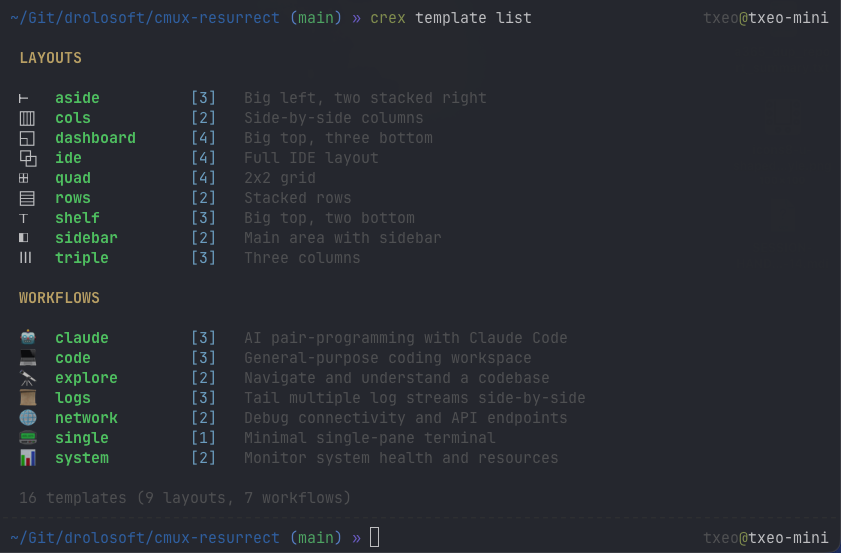
16 Ready-to-Use Workspace Templates
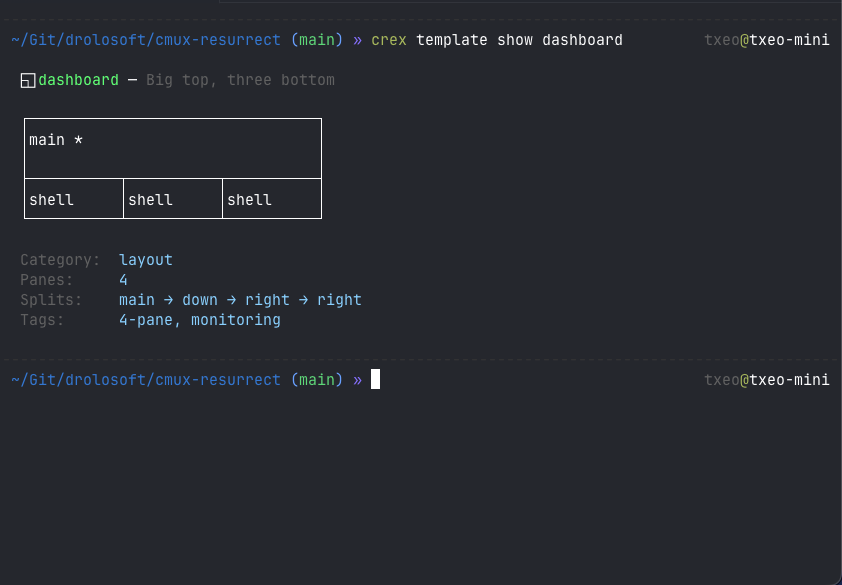
From simple two-pane splits to full IDE layouts. Browse, preview, and create workspaces in seconds. Inspired by shadcn: copy it, it's yours.
Pure pane geometry — no commands, language-agnostic
cols 2 Side-by-side columns
┌──────────┬───────────────────────┐
│          │                       │
│  main *  │  shell                │
│          │                       │
└──────────┴───────────────────────┘
rows 2 Stacked rows
┌──────────────────────────────────┐
│  main *                          │
├──────────────────────────────────┤
│  shell                           │
└──────────────────────────────────┘
sidebar 2 Main area with sidebar
┌──────┬───────────────────────────┐
│      │                           │
│ side │  main *                    │
│      │                           │
└──────┴───────────────────────────┘
shelf 3 Big top, two bottom
┌──────────────────────────────────┐
│  main *                          │
│                                  │
├────────────────┬─────────────────┤
│  shell         │  shell          │
└────────────────┴─────────────────┘
aside 3 Big left, two stacked right
┌──────────┬───────────────────────┐
│          │  shell                │
│  main *  │                       │
│          ├───────────────────────┤
│          │  shell                │
└──────────┴───────────────────────┘
triple 3 Three columns
┌──────────┬──────────┬──────────┐
│          │          │          │
│  main *  │  shell   │  shell   │
│          │          │          │
└──────────┴──────────┴──────────┘
quad 4 2x2 grid
┌────────────────┬─────────────────┐
│  main *        │  shell          │
├────────────────┼─────────────────┤
│  shell         │  shell          │
└────────────────┴─────────────────┘
dashboard 4 Big top, three bottom
┌──────────────────────────────────┐
│  main *                          │
│                                  │
├──────────┬──────────┬──────────┤
│  shell   │  shell   │  shell   │
└──────────┴──────────┴──────────┘
ide 4 Full IDE layout
┌────────┬─────────────────────────┐
│        │  shell *                │
│  main  │                         │
│        ├────────────┬────────────┤
│        │  shell     │  shell     │
└────────┴────────────┴────────────┘
Opinionated tool combos for common terminal activities
claude 3 AI pair-programming with Claude Code
┌──────────┬───────────────────────┐
│          │  claude *             │
│  lazygit │                       │
│          ├───────────────────────┤
│          │  shell                │
└──────────┴───────────────────────┘
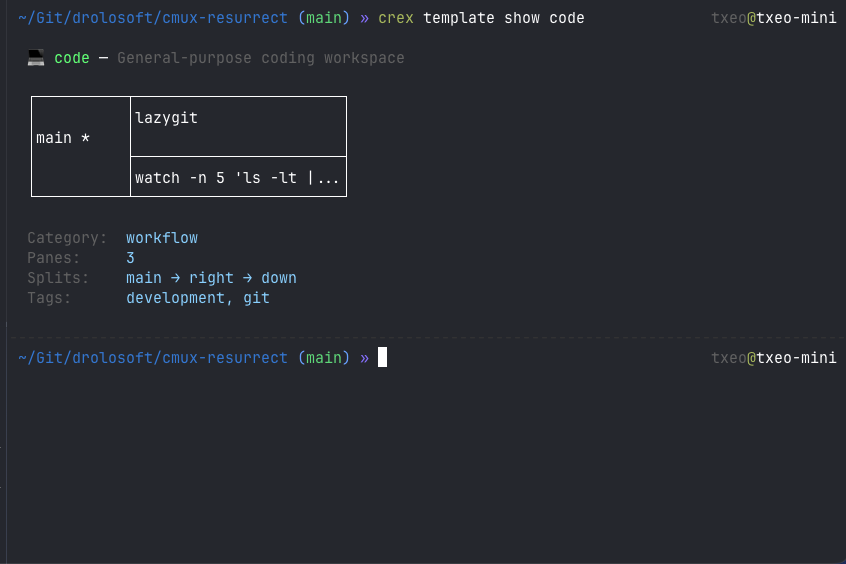
code 3 General-purpose coding workspace
┌──────────┬───────────────────────┐
│          │  lazygit              │
│  main *  │                       │
│          ├───────────────────────┤
│          │  watch -n 5 'ls...'   │
└──────────┴───────────────────────┘
explore 2 Navigate and understand a codebase
┌──────────┬───────────────────────┐
│          │                       │
│  main *  │  git log --oneline... │
│          │                       │
└──────────┴───────────────────────┘
system 2 Monitor system health and resources
┌──────────┬───────────────────────┐
│          │                       │
│  htop    │  df -h                │
│          │                       │
└──────────┴───────────────────────┘
logs 3 Tail multiple log streams side-by-side
┌──────────┬──────────┬──────────┐
│          │          │          │
│  syslog* │  dmesg   │  shell   │
│          │          │          │
└──────────┴──────────┴──────────┘
network 2 Debug connectivity and API endpoints
┌──────────┬───────────────────────┐
│          │                       │
│  main *  │  curl -s ifconfig.me  │
│          │                       │
└──────────┴───────────────────────┘
single 1 Minimal single-pane terminal
┌──────────────────────────────────┐
│                                  │
│  main *                          │
│                                  │
└──────────────────────────────────┘
Blueprints
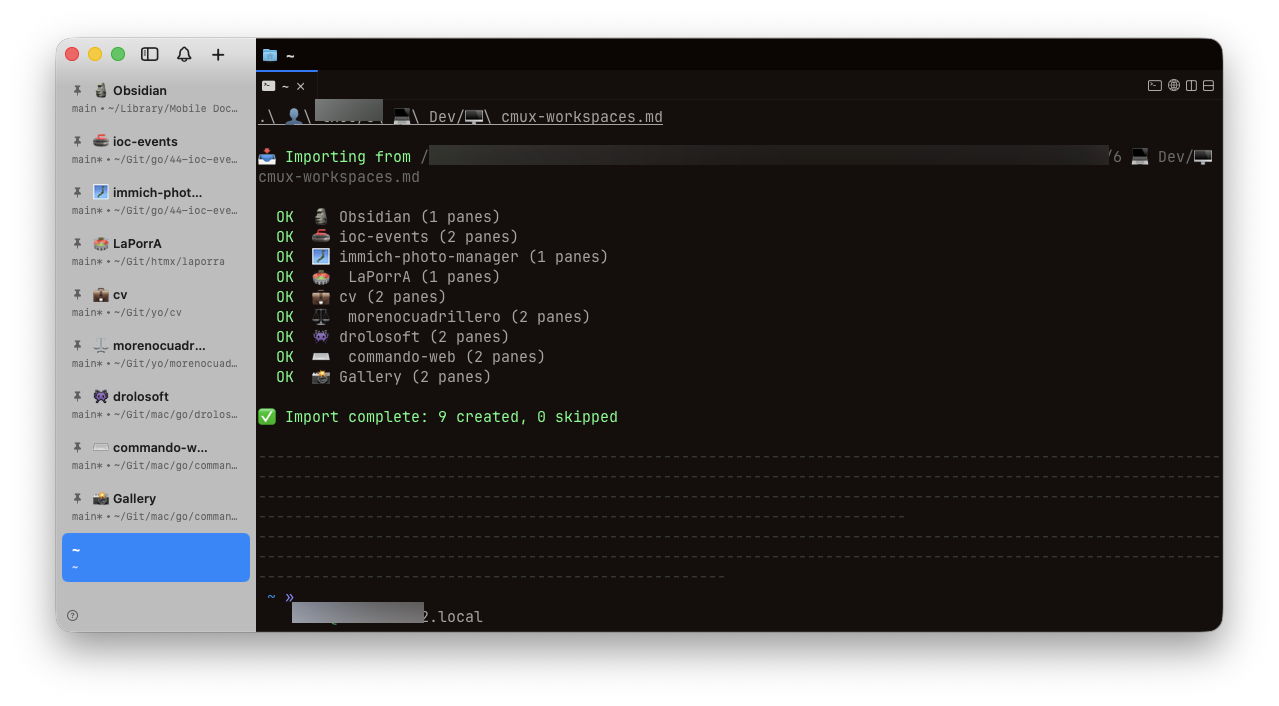
Blueprints are Markdown documents with two sections — Projects and Templates. Compatible with Obsidian and any Markdown editor. Checkboxes control which entries get created. Templates define reusable pane layouts.
Commands
| Command | Alias | Description |
|---|---|---|
crex tui | crex | Launch interactive shell (also: just type crex) |
crex setup | Guided first-run configuration wizard | |
crex save [name] | Capture current layout to TOML | |
crex restore [name] | Recreate tabs, pane arrangements, and commands | |
crex list | ls | List saved layouts with tab/workspace count |
crex show <name> | Display layout details (--raw for TOML) | |
crex edit <name> | Open layout in $EDITOR | |
crex delete <name> | rm | Delete a saved layout |
crex import-from-md | Create entries from a Blueprint Markdown file | |
crex export-to-md | Export live terminal state to Blueprint Markdown | |
crex watch | Auto-save daemon with start/stop/status management | |
crex blueprint add | bp add | Add entry to Blueprint |
crex blueprint remove | bp rm | Remove entry from Blueprint |
crex blueprint list | bp ls | List Blueprint entries |
crex blueprint toggle | bp toggle | Enable/disable a Blueprint entry |
crex template list | tpl ls | List available templates |
crex template show <name> | tpl show | Preview a template with ASCII diagram |
crex template use <name> [path] | tpl use | Create tab/workspace from a template |
crex template customize <name> | tpl edit | Fork a template for customization |
crex completion [bash|zsh|fish] | Generate completion script for your shell | |
crex settings restore-mode set <mode> | Set restore mode: ask, replace, or add | |
crex settings restore-mode get | Show the current restore mode | |
crex settings restore-mode list | List all available restore modes | |
crex version | Print version, commit, build date |
Configuration
Everything is zero-config by default — banner style auto-detects, colors adapt, terminal background is sniffed via OSC 11. Tune it anyway:
Two environment variables override detection when you need determinism (tmux passthrough, CI, screenshots):
Tab Completion in Action
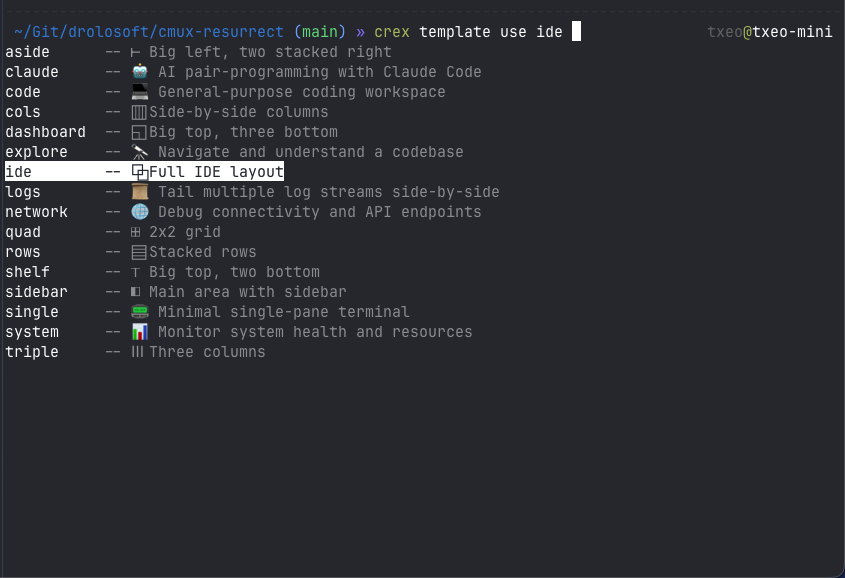
Completions are installed automatically with Homebrew. Layout names come from your actual saved sessions — not a static list.
Documentation
Deep dives, authoring guides, and the full command reference.
Platform Compatibility
crex runs wherever cmux or Ghostty runs. Auto-detects your terminal — no flags, no configuration, no compatibility surprises.
| Platform | Architecture | Status |
|---|---|---|
| macOS (Apple Silicon) | M1, M2, M3, M4 | ✅ Tested |
| macOS (Intel) | x86_64 | ✅ Tested |
| Linux | x86_64 / ARM64 | ⚪ Compiles only (no backend yet) |
Built With
crex is a single Go binary with no runtime dependencies.
- Go 1.26 — Fast compilation, single binary output
- Cobra — CLI framework for commands and flags
- go-toml/v2 — Configuration file parsing
- Lipgloss — Styled CLI output with colors
- Bubble Tea + Huh — Interactive shell, TUI components, browse mode
- 387 tests — Comprehensive test suite with unit, wiring, and E2E coverage

I build tools I wish existed, then give them away.
If one of them saved you time, a coffee keeps the next one coming.

Ready to save your workspaces?
crex is free, open source, and ready to use.